Quick Start Guide
Create your first RMA in ReturnMate and learn the basics of processing returns.
This guide will walk you through creating your first RMA (Return Merchandise Authorization) in ReturnMate. By the end, you'll understand the core workflow for processing returns.
Prerequisites
Before you begin, ensure you have:
- Installed ReturnMate from the Shopify App Store
- Completed basic setup (return address configured)
- At least one test order in your Shopify store
You can use Shopify's test mode to create sample orders without processing real payments.
Creating Your First RMA
Access ReturnMate
From your Shopify admin, click on Apps in the left sidebar, then select ReturnMate. You'll be taken to the ReturnMate dashboard.
Create New RMA
Click the Create RMA button in the top-right corner of the RMAs list (or choose Create Return in the app navigation). This opens the Create Return page.
Search for the Order
Under Search Order, choose whether to search by Order Number, Customer Email or Customer Phone, enter the value and click Search. Email and phone searches list all matching orders — select the one you want.
Select Items and Reason
Choose a Return Reason for the return, then under Select Items to Return, tick each item the customer is returning and set the Qty for each.
Choose Return Method
Select how the customer will return the item:
- Generate Return Label - A return label will be generated when approved
- In-Store Drop Off - Customer returns the item to a physical location
- Customer's Own Courier - Customer arranges their own return shipping
- No Return Required (Customer Keeps Item) - For damaged or wrong-item claims
- Counter Swap (Immediate Replacement) - Customer receives an immediate in-store replacement
- Resolve Remotely (Phone Fix / Send Parts) - Resolve without a physical return
Review and Create
Add a Problem Description if needed, review the details and click Create Return. ReturnMate will:
- Generate a unique RMA number
- Create the return record, pre-approved (staff-created RMAs skip the approval step)
- Send the customer a confirmation email (if configured)
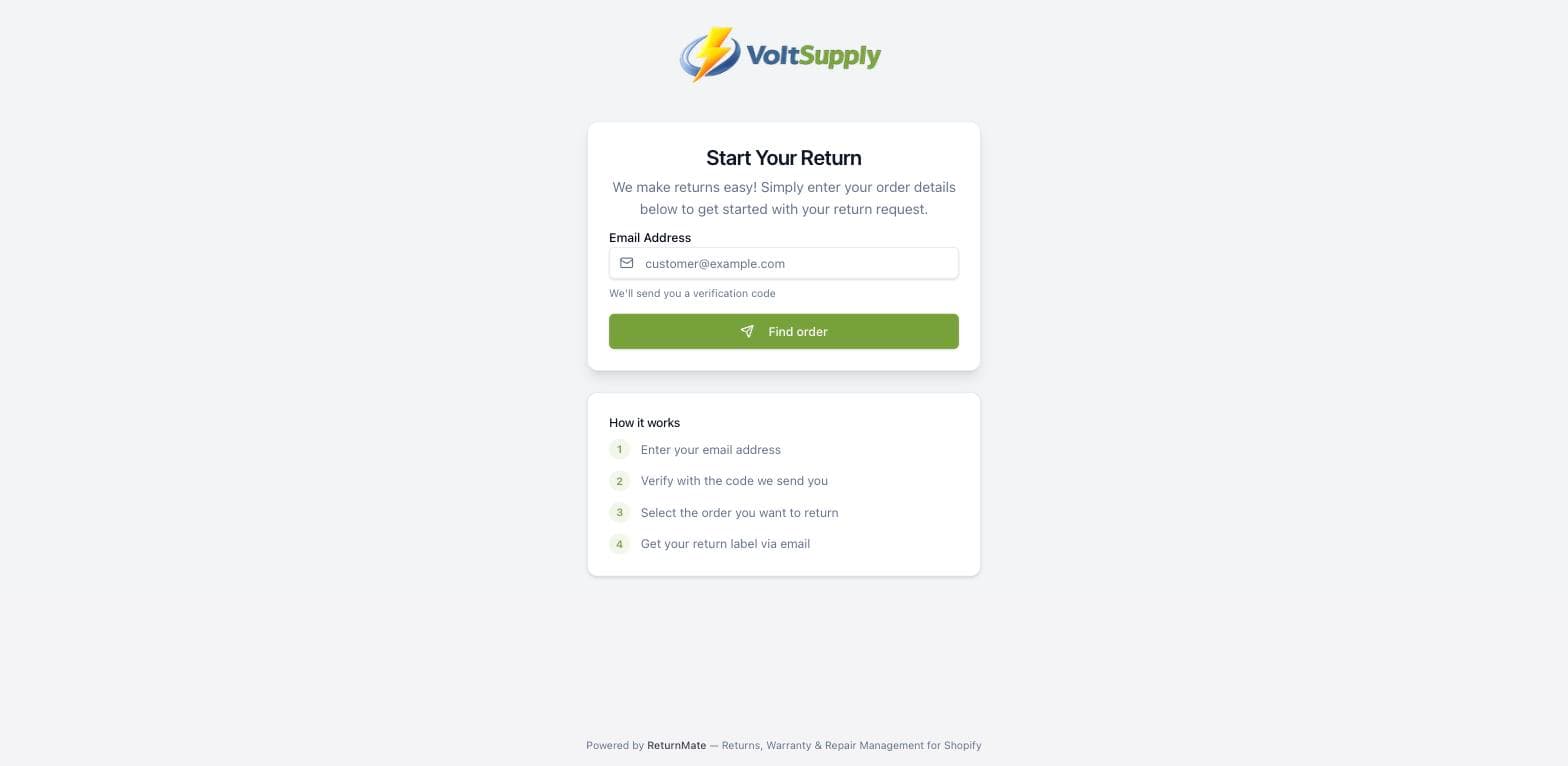
Understanding RMA Statuses
Staff-created RMAs start pre-approved; requests submitted by customers through the return portal arrive as Submitted and await your review. Here's the lifecycle in order:
| Status | Description |
|---|---|
| Draft | RMA started but not yet submitted |
| Pending / Submitted | Return request awaiting review |
| Waiting Customer | Approved — waiting on the customer to choose their return method |
| Approved | Return approved |
| Label Issued | Shipping label generated for the return |
| In Transit | Package is on its way to your warehouse |
| Received | Package arrived and checked in |
| Inspected | Items have been checked and assessed |
| Resolved / Refunded | Return completed (refunded/exchanged/credited) |
| Closed | RMA archived after completion |
| Rejected | Return was not approved |
| Cancelled | Return was cancelled |
Next Actions
After creating the RMA, you can:
Generate a Shipping Label
- Open the RMA details
- Click Generate Return Label
- Select your preferred carrier
- The label will be emailed to the customer automatically
Communicate with the Customer
Use the Timeline section to add notes or send messages to the customer. All communication is logged for reference.
Track the Return
Once the label is scanned, tracking information will appear in the RMA details. You'll receive notifications as the status changes.
Testing Your Workflow
We recommend testing the full return workflow before going live:
- Create a test RMA using a sample order
- Generate a shipping label
- Verify the customer email was sent correctly
- Mark the return as received
- Complete an inspection
- Process a refund or exchange
Use test carrier credentials during setup to avoid charges while testing your workflow.
Common Issues
Order Not Found
If you can't find an order:
- Ensure you're searching with the correct order number (include the # symbol)
- Check if the order is from a connected Shopify store
- Verify the order hasn't been archived in Shopify
Label Generation Failed
If label generation fails:
- Confirm carrier credentials are configured correctly
- Check the destination address is valid
- Ensure package dimensions are within carrier limits
What's Next?
Now that you've created your first RMA, continue with:
- Setup Wizard Overview - Configure all settings
- Returns Workflow - Learn the full process
- Connect Carriers - Add shipping providers