Audit Logs
What ReturnMate records in its audit log, where you can see activity history in the admin, and how to request an audit investigation.
ReturnMate keeps a backend audit log of significant actions for compliance and security. This article explains what's recorded, where you can see activity history in the admin, and what to do when you need a deeper investigation.
What's recorded
Every significant action is written to an audit log that records who did it (the user, or "system" for automated actions), when, the IP address and device of the request, and — for updates — the before and after values of what changed. Sensitive values such as passwords, tokens and API keys are redacted before logging.
| Category | Examples |
|---|---|
| RMA lifecycle | Created, submitted, approved, rejected, received, inspected, resolved, status changed, assigned |
| Shipping | Labels created or cancelled, tracking updated |
| Refunds & credits | Refund initiated, processed or failed; store credit issued; gift card created |
| Warranty & repairs | Warranty resolutions; repair quotes created, sent, paid or cancelled |
| Settings changes | Return reasons, carrier accounts, warranty policies, dangerous goods records, branding, domain settings |
| Users | Created, updated, deactivated, role changed, login and logout |
| Security & integrations | API key rotated, webhooks received, suspicious activity |
Where you can see history
The Activity Timeline on each RMA
The user-facing history for a return is the Activity Timeline on its RMA page. It shows status changes, transfers, notes, emails, serial number events and other actions in order, with who performed each one. When you need to know "what happened to this return and when", start here.
Diagnostic Logs (Admins)
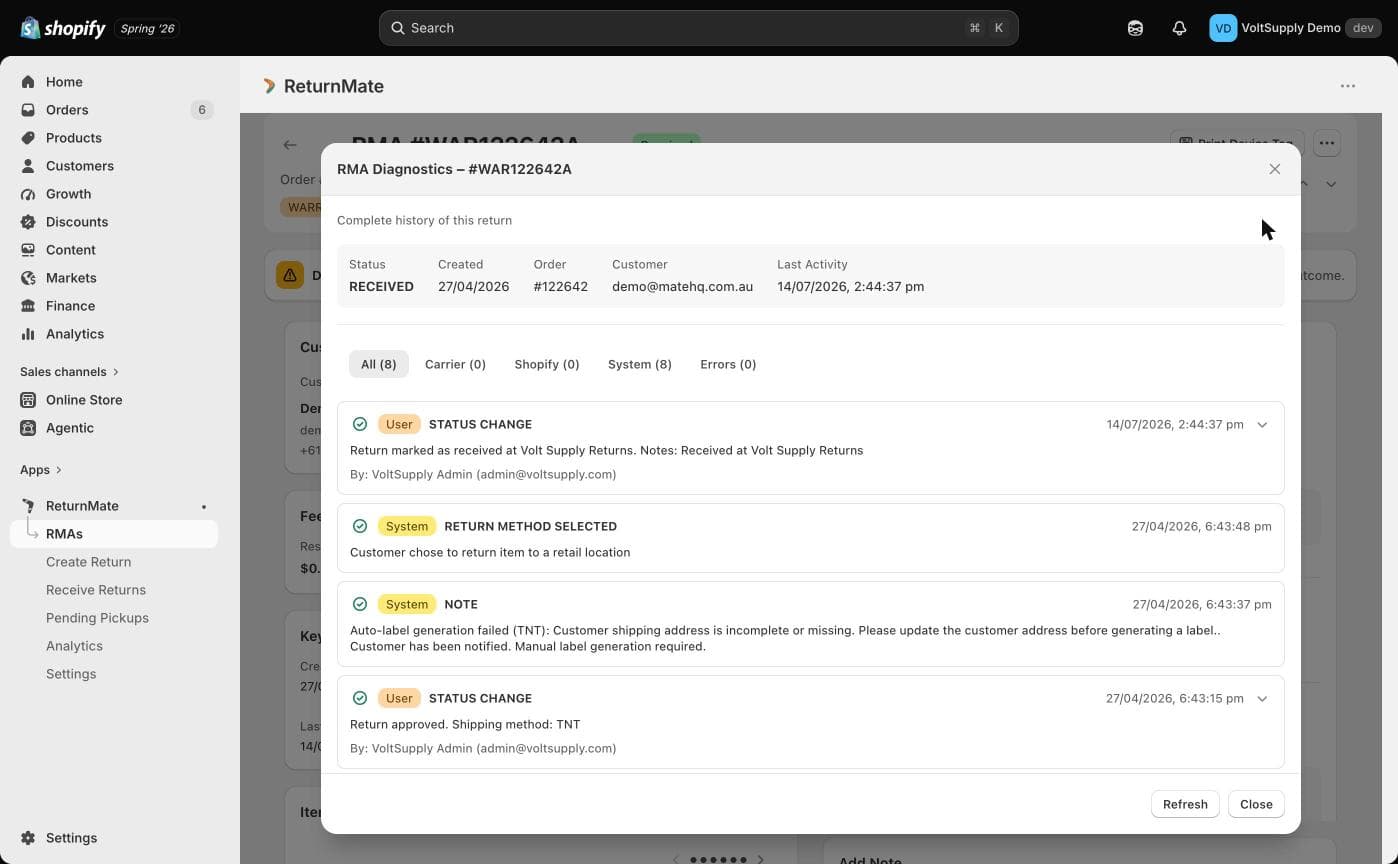
Admins have a Diagnostic Logs action in the RMA's actions menu. It opens a combined event feed for that RMA with tabs for All, Carrier, Shopify, System (which includes the RMA's audit-log entries) and Errors. Each event can be expanded to show its full details, making this the best tool for troubleshooting a specific return — for example, tracing a failed refund or a carrier API error.
There is currently no screen in Settings for browsing or exporting the full audit log across all records. The per-RMA views above cover day-to-day needs; for anything broader, contact support.
Audit investigations
For compliance audits, dispute investigations or security reviews that go beyond a single RMA's timeline — for example, "show every action user X took in March" — contact support. The underlying audit log can be filtered by user, action type, entity and date range on request.