Gorgias Integration
Connect ReturnMate to Gorgias so support agents see RMA status and tracking on the ticket, every new return opens a ticket, and messages and notes stay in step.
The Gorgias integration puts return context on the support ticket and keeps the conversation in step between Gorgias and ReturnMate. Agents see a customer's RMAs in the Gorgias sidebar, ReturnMate can open a ticket automatically for every new return, and customer messages and internal notes sync between the linked ticket and the RMA timeline.
Helpdesk integrations are included on Starter and every plan above. On the Free plan a saved Gorgias connection is kept, but nothing syncs until the store upgrades. See Billing & Plans.
What the integration does
| Capability | Where it appears |
|---|---|
| Sidebar widget showing the customer's RMAs: status and SLA, return or warranty, dangerous-goods flag, reason, resolution, return method, tracking, items and last activity, with links to the RMA in ReturnMate and to the customer's portal view | Gorgias ticket sidebar |
| Automatic ticket for each new return, with evidence photos attached and the return's history copied as internal notes | Gorgias |
| Link an existing ticket to an RMA, or create one from the RMA; open the ticket in Gorgias | RMA detail page, Support Ticket card |
| Customer messages synced between the linked ticket and the RMA timeline, in the direction you choose | Both |
| Internal notes synced with their own direction and visibility; inspection findings and customer-facing updates posted to the ticket as private notes | Both |
Two boundaries worth knowing before you set it up:
- The sidebar widget is read-only. Agents view and open; approving a return, issuing a refund or changing a status is done in ReturnMate, where the permissions and audit trail live.
- RMA status and ticket status are independent. Closing a ticket does not resolve a return, and resolving a return does not close the ticket. What crosses over is the conversation: messages and notes.
Connecting Gorgias
Enable the integration
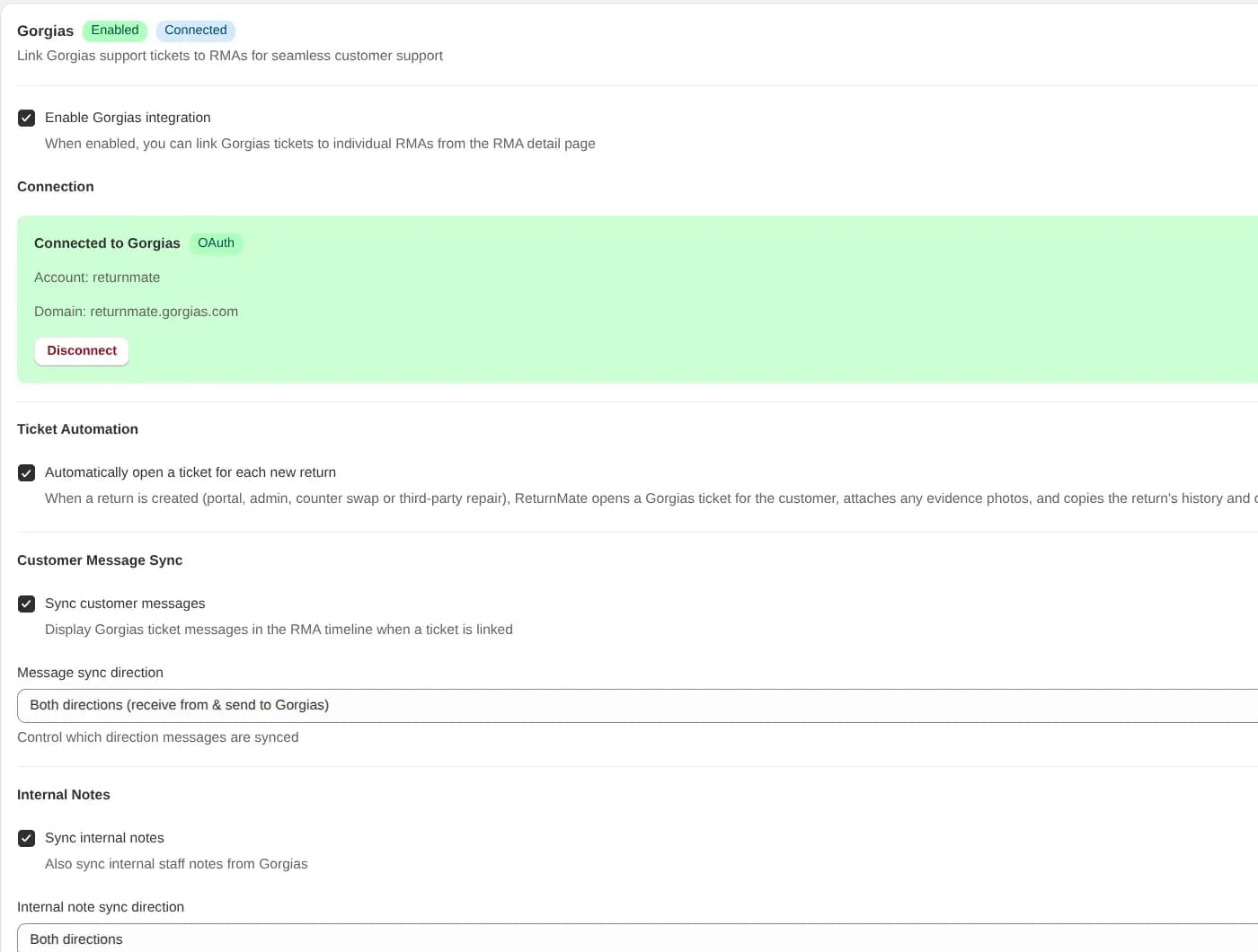
In ReturnMate go to Settings → Integrations → Gorgias and tick Enable Gorgias integration.
Connect your account
Enter your Gorgias subdomain (the yourcompany part of yourcompany.gorgias.com) and click Connect Gorgias. Approve the connection in Gorgias. The connection panel then shows Connected to Gorgias with the account and domain.
If you would rather not use OAuth, tick Use API credentials instead and enter your Gorgias user email and an API key from Gorgias → Settings → REST API.
Save
Click Save Settings. The sync and widget options below become available once connected.
Choosing what syncs
All of these are under Settings → Integrations → Gorgias after connecting.
Ticket automation
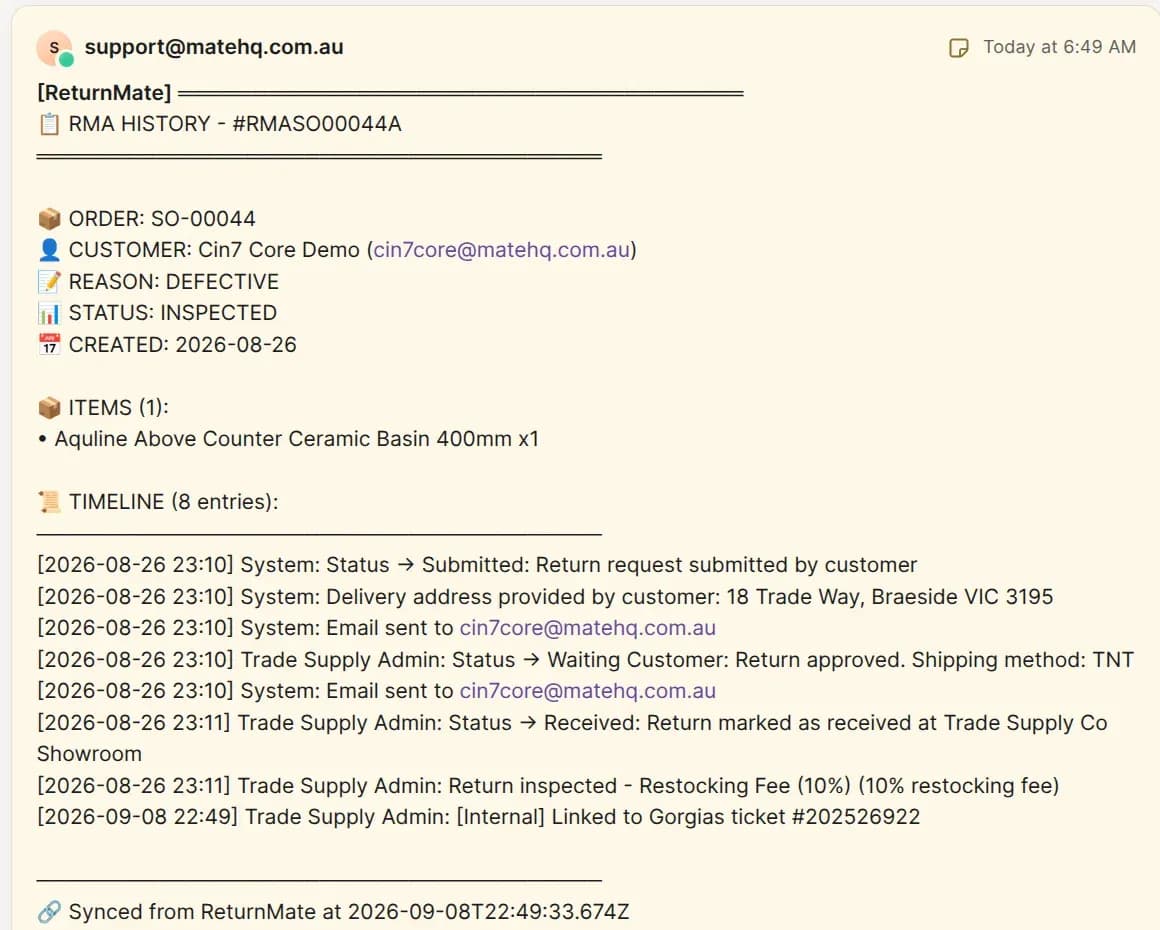
Automatically open a ticket for each new return. When a return is created — from the customer portal, the admin, a counter swap or a third-party repair — ReturnMate opens a Gorgias ticket for the customer, attaches any evidence photos, and copies the return's history and ongoing correspondence to the ticket as internal notes.
Customer message sync
- Sync customer messages shows Gorgias ticket messages in the RMA timeline once a ticket is linked.
- Message sync direction controls the flow: receive from Gorgias only, send to Gorgias only, or both.
Internal notes
- Sync internal notes also syncs internal staff notes from Gorgias.
- Internal note sync direction works the same way as message direction.
- Internal note visibility sets who in ReturnMate can see notes synced from Gorgias: Admin only, or all staff. See Roles & Permissions.
Message storage
- Store unlinked messages keeps messages from Gorgias tickets that are not yet linked to an RMA, so they can be attached later.
- Auto-attach history when linking chooses which stored messages are attached to the RMA when a ticket is linked.
- Message retention (days) is 365 by default and can be set from 30 to 3650. Messages linked to active RMAs are never deleted by retention.
Setting up the sidebar widget
Enable the widget
Under Gorgias Sidebar Widget, tick Enable sidebar widget.
Automatic setup
Click Setup Widget in Gorgias. ReturnMate creates the HTTP integration and the sidebar widget in your Gorgias account and configures them for you. This is the recommended route.
Manual setup (alternative)
If automatic setup does not work in your account, configure the widget by hand using the Widget Endpoint and Widget Secret shown in ReturnMate. The secret is displayed once when generated; save it, or use Rotate Secret to issue a new one.
- In Gorgias, go to Settings → Integrations → HTTP Integration.
- Create a new integration using the GET method.
- Set the URL to the Widget Endpoint shown in ReturnMate.
- Add the header
Authorization: Bearer <your widget secret>. - Create a Widget linked to that integration.
Rotating the secret invalidates the old one, so update the Gorgias integration's header afterwards.
What agents see in Gorgias
When an agent opens a ticket, the ReturnMate widget in the sidebar lists that customer's returns. Each RMA shows its number, links to Open in ReturnMate and the Customer portal view, then status with the SLA state, type (Return or Warranty), order, reason, resolution, return method, tracking, opened date, last activity, a dangerous-goods flag and the items.
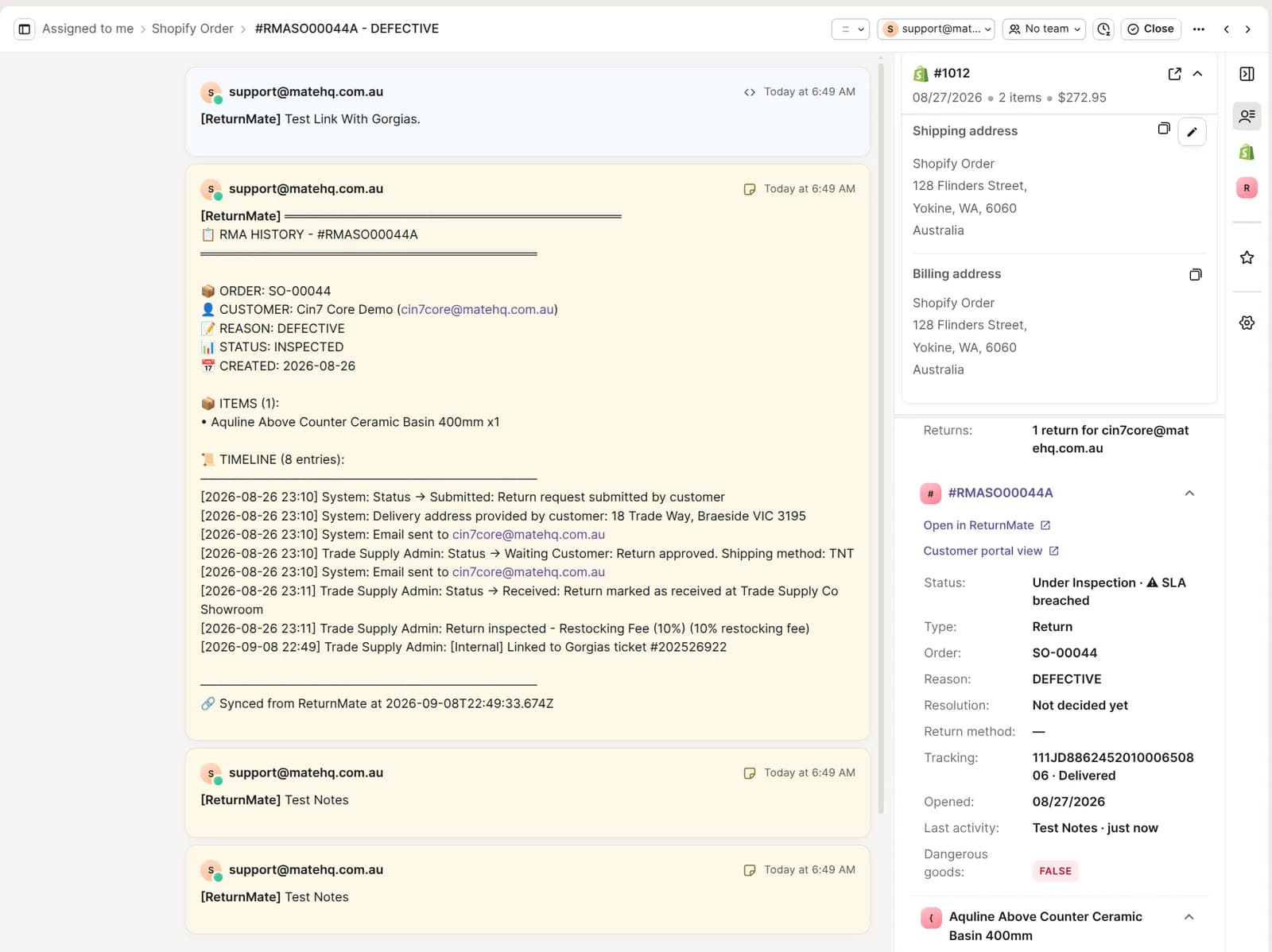
The widget shows and links only. To act on the return, the agent clicks Open in ReturnMate.
Working with tickets from the RMA
On the RMA detail page, the Support Ticket card lets staff:
- Link an existing Gorgias ticket by entering its ID or picking from the customer's tickets. Stored messages from that ticket are attached to the RMA according to the auto-attach setting.
- Create a new Gorgias ticket from the RMA when none exists.
- Open in Gorgias to jump to the ticket, or Unlink it.
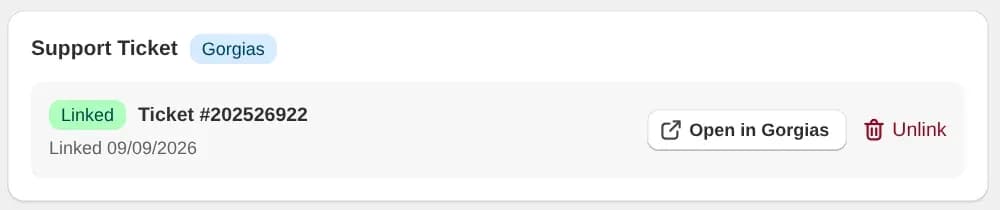
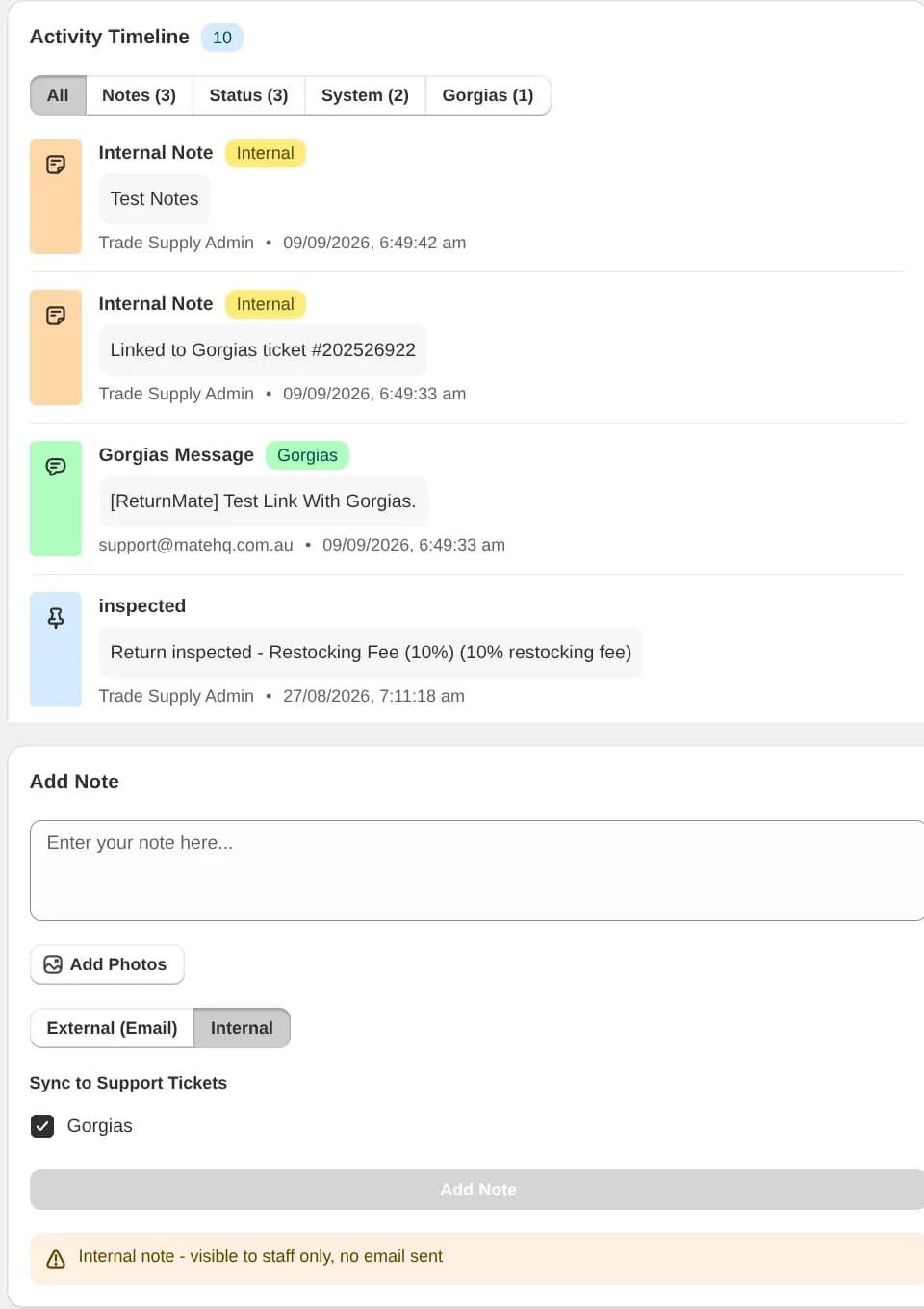
Synced Gorgias messages appear in the RMA Activity Timeline with a Gorgias label, alongside internal notes and status entries. When adding a note on the RMA, tick Sync to Support Tickets → Gorgias to send it to the linked ticket; internal notes arrive in Gorgias as private notes, and external notes go out as replies. Inspection findings and the customer-facing updates ReturnMate sends are also posted to the ticket as private notes, prefixed [ReturnMate].
Disconnecting
Disconnect in the connection panel revokes ReturnMate's access to your Gorgias account and stops syncing new messages. Existing links and previously synced messages on RMAs are kept. Deleting an RMA removes its link and leaves the Gorgias ticket intact.
Troubleshooting
The widget shows nothing on a ticket. The widget matches on the ticket customer's email. Check the RMA's customer email matches the Gorgias customer, that the widget is enabled in ReturnMate, and that the store is on Starter or above.
Messages are not appearing on the RMA. Confirm the ticket is linked on the RMA's Support Ticket card, that Sync customer messages is on, and that the direction includes receiving from Gorgias.
Setup Widget in Gorgias fails. Use the manual steps above with the Widget Endpoint and secret. If the secret was never saved, rotate it and use the new value.
Nothing syncs after a plan change. Helpdesk sync requires Starter or above; a store on Free keeps its connection but sync is paused until it upgrades.