Evidence Photos & Videos
How customers and staff attach photos and videos to an RMA — formats and limits, where files appear, HEIC handling, and how evidence is stored securely.
Evidence photos and videos document an item's condition — damage on arrival, the wrong product, a fault — so approvals, inspections and disputes are decided on proof rather than descriptions. This article covers who uploads what, the exact limits, where files appear, and how they're stored.
Who uploads what
Customers — at submission
When a customer submits a return through the portal, an Upload Photos step appears based on the return reason:
- The step is shown for damaged-in-transit and wrong-item returns, and for any reason configured to require photos.
- Photos are mandatory for reasons that require them — by default Damaged in transit, Wrong item and Warranty — repair. The customer can't submit until at least one file is uploaded. Which reasons require photos is configurable per reason (see Return Reasons).
- The step shows reason-specific prompts and tips (e.g. "Upload Photos/Videos of the Fault" with tips like showing the specific issue and using video to demonstrate the problem).
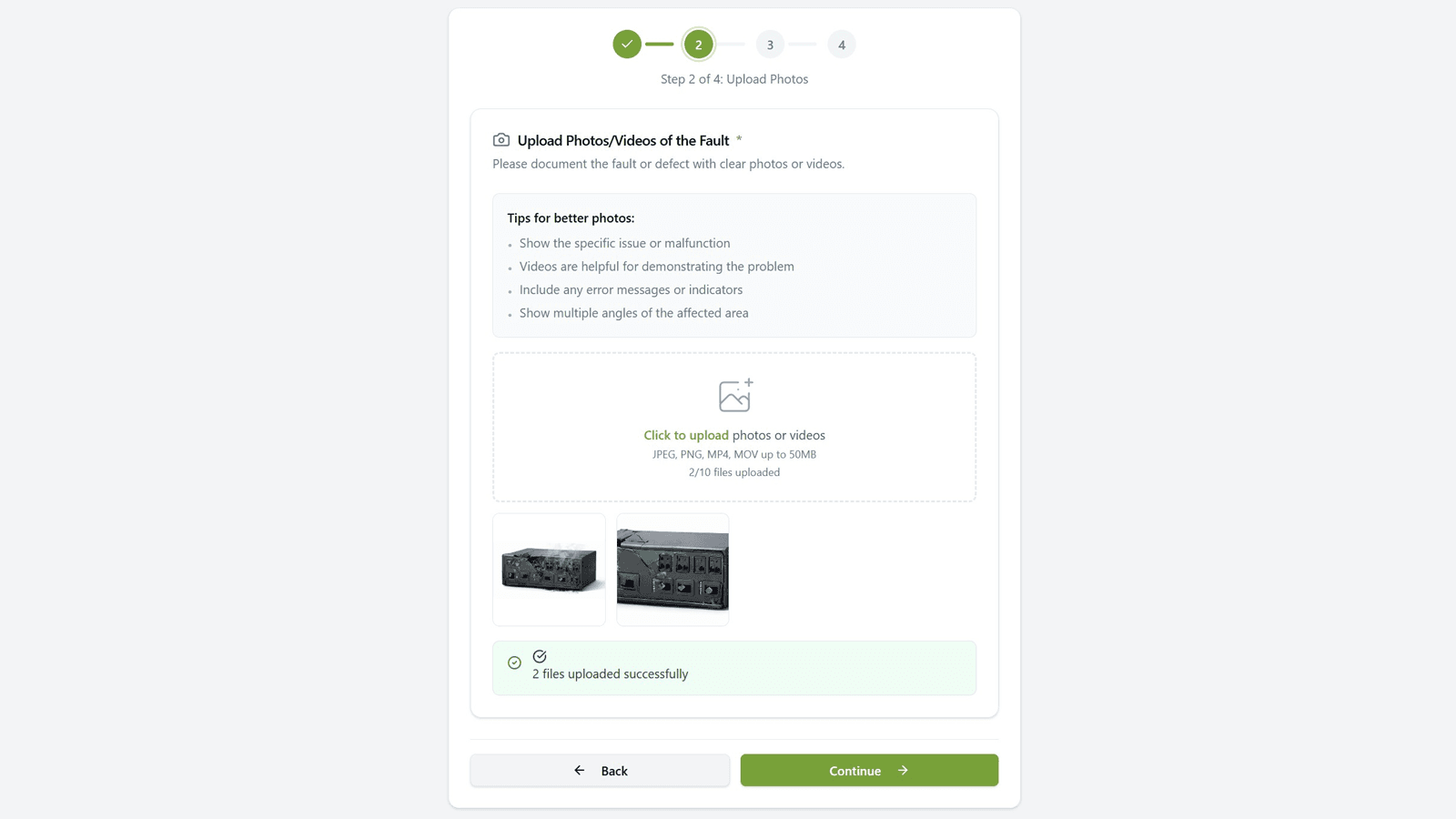
If a return that requires photos is submitted without any on file, the customer's tracking page shows a Photos required alert until photos are provided.
Staff — during receiving, inspection and notes
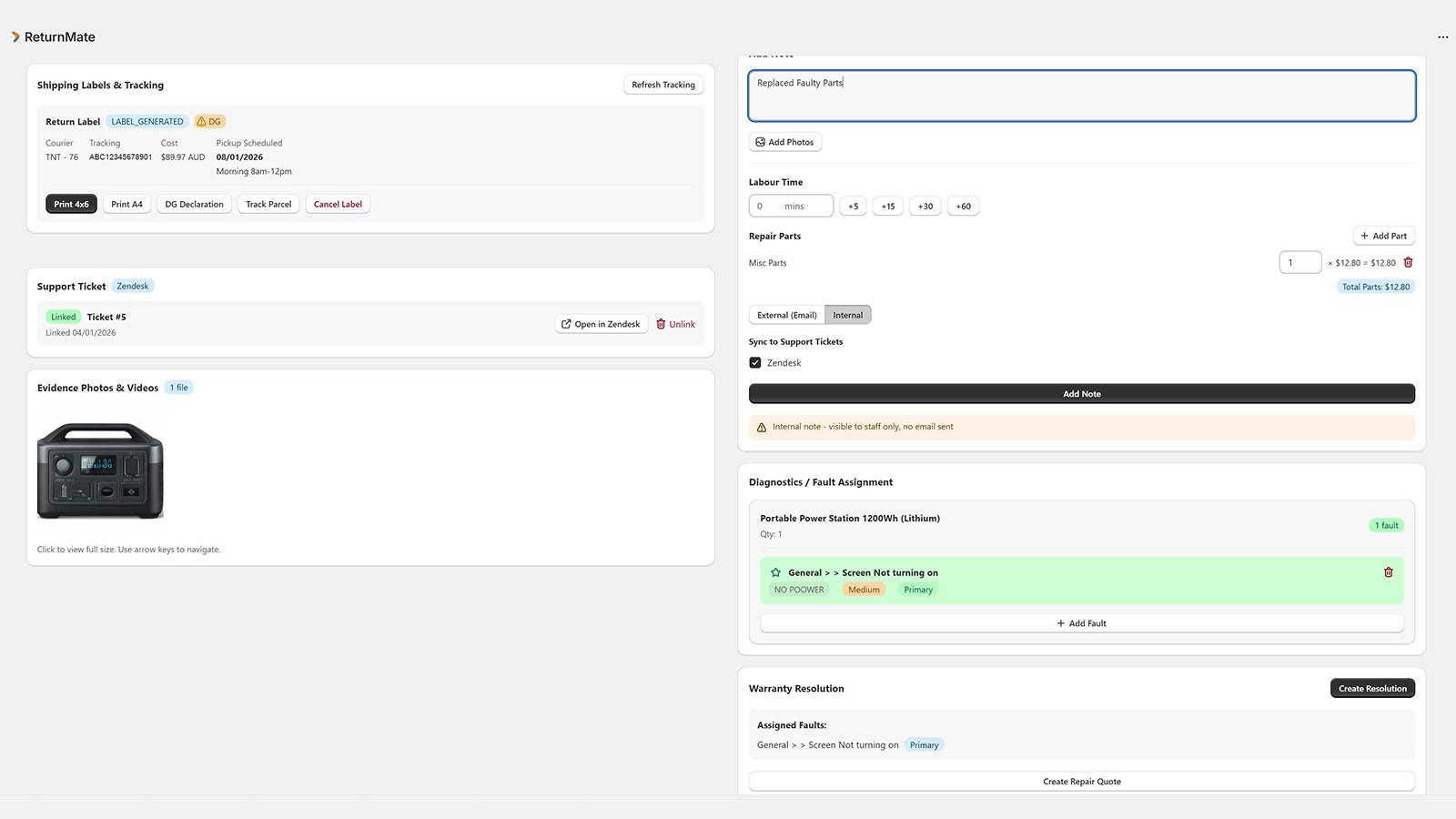
Staff attach evidence from the RMA detail page:
- Add Note → Add Photos — attach up to 10 images to a note. The note (with its photos) lands on the RMA timeline; if it's an external note synced to a linked Gorgias or Zendesk ticket, the photos are attached to the ticket message too.
- Inspection — when recording the inspection outcome, staff can upload inspection photos (up to 10). They're saved as evidence with a note recording the condition selected.
Formats and limits
Limits differ between the customer portal and the admin:
| Customer portal | Staff (admin) | |
|---|---|---|
| File types | JPEG, PNG, MP4, MOV | Images only (JPEG, PNG, GIF, WebP) |
| Max file size | 50 MB per file | 10 MB per file |
| Max files | 10 per return | 10 per upload |
| Upload path | Direct to storage via a presigned URL | Via the ReturnMate API |
Customers can upload MP4/MOV videos — often the clearest way to demonstrate an intermittent fault. Staff uploads through the admin are image-only.
What happens to images on upload
Staff-uploaded images are optimised automatically:
- Images larger than 2000px on either side are resized down (aspect ratio preserved).
- Files over 200 KB are recompressed to JPEG (quality 82) to save storage.
- iPhone HEIC photos are converted to JPEG so they display in every browser.
- A small thumbnail is generated for the gallery grid, so the RMA page loads fast.
Customer-uploaded files go directly to storage as-is; HEIC files that arrive disguised with a .jpg/.png name are detected by content and converted to JPEG the first time they're viewed, then cached.
Where photos appear
- RMA detail page — the Evidence Photos & Videos card shows every file as a thumbnail grid with a file count badge; click any thumbnail for a full-size lightbox.
- Activity timeline — uploads appear as Evidence Photo entries, and note photos appear with their note.
- Repair quotes — inspection photos attached to a repair quote (with optional captions) are shown to the customer alongside the quote on their tracking page, so they can see why the repair costs what it does. Quote photos are managed on the quote itself and are separate from the RMA evidence gallery — see Repair Quotes.
- Helpdesk tickets — when a note with photos is synced to a linked Gorgias or Zendesk ticket, the photos are uploaded to the ticket as attachments.
Storage and security
- Files are stored in private cloud object storage — never on a public URL.
- Every view goes through a signed URL that expires after 1 hour, scoped to the specific RMA and file. Expired links simply stop working; the admin and portal generate fresh ones automatically.
- See Security for the broader data-protection picture.
Permissions and plan requirements
Evidence upload and viewing is available on all plans. Any staff member who can open an RMA can view its evidence and attach photos via notes and inspection.
Limitations
- Videos are stored as uploaded — no compression or thumbnail generation.
- Staff can't upload videos through the admin; ask the customer to upload video via the portal.
- Customer photo counts are enforced by the portal uploader (10 files); the file-size and type checks happen before upload, so oversized or unsupported files are rejected immediately with a message.
Troubleshooting
| Message | Cause |
|---|---|
| "Invalid file type: … Only JPEG, PNG, MP4, and MOV files are allowed." | Customer tried to upload an unsupported format (e.g. PDF, GIF) in the portal. |
| "File too large: … Maximum size is 50MB." | Portal file exceeds 50 MB — trim the video or lower the resolution. |
| "Maximum 10 files allowed" | The return already has 10 files attached in the uploader — remove one first. |
| "Only image files are allowed" | Staff tried to attach a non-image via the admin. |
| A photo won't display in the admin | Signed links expire after 1 hour — refresh the page to mint new ones. |