RMA Queues, Filters & Saved Views
Work the RMA list efficiently — queue tabs, the full filter set, saved views, bulk assignment, CSV export and location switching.
The RMAs page is your operational command centre. This guide covers every queue tab and filter, how to save views for your team's workflow, and the bulk actions available.
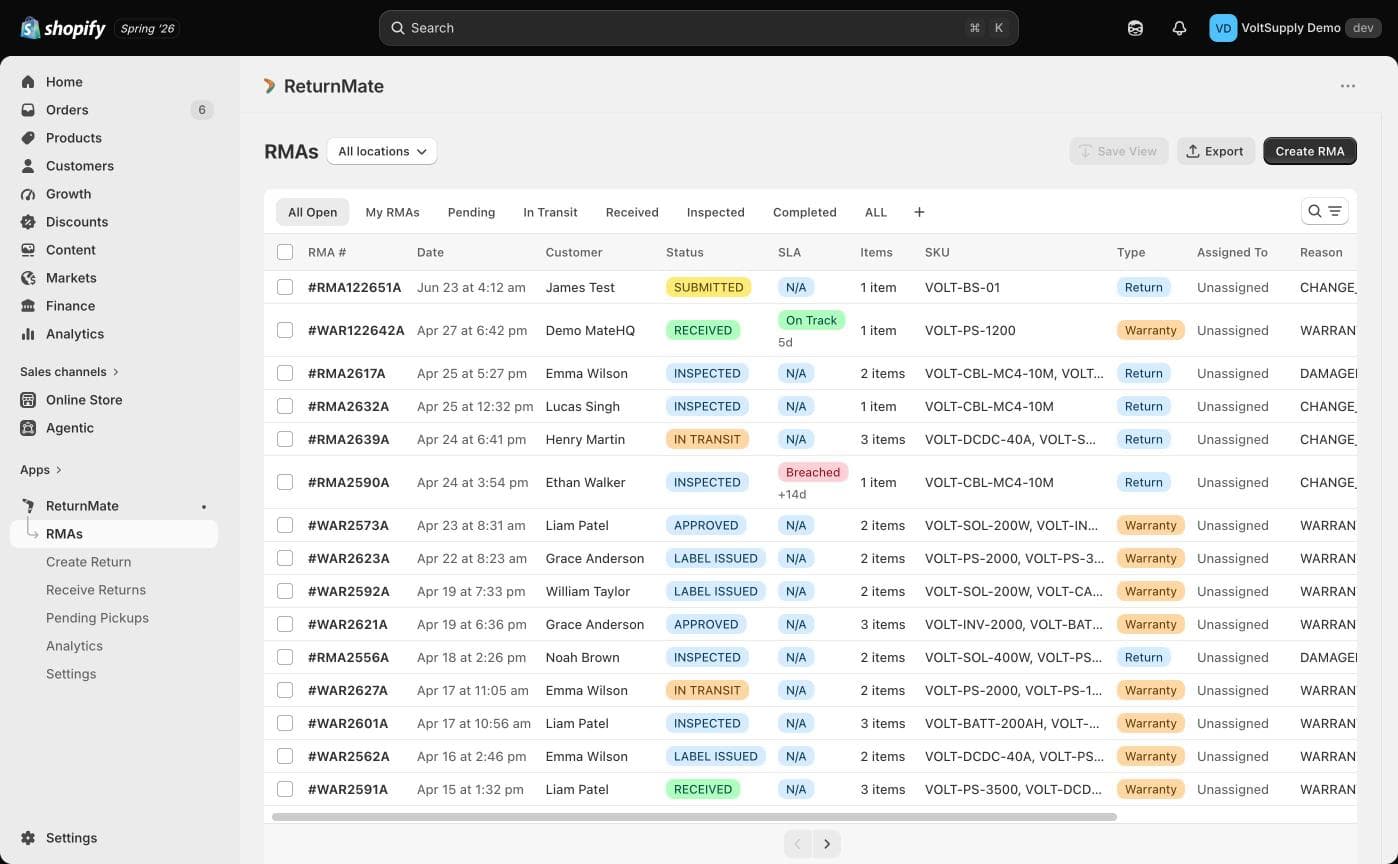
Queue tabs
Seven built-in tabs segment the list; your saved views appear as additional tabs after them:
| Tab | Shows |
|---|---|
| All Open | Every RMA that isn't closed, cancelled or archived |
| My RMAs | RMAs assigned to you |
| Pending | Awaiting review/approval |
| In Transit | On the way back to you |
| Received | Arrived, awaiting inspection |
| Inspected | Inspected, awaiting resolution |
| Completed | Resolved/closed |
Filters
Open the filter panel to combine any of these dimensions:
- Type — Return, Warranty, or Third Party Repair
- Status — the RMA lifecycle statuses (see the Workflow Guide)
- Assigned to — a team member, or Unassigned
- Reason — your configured return reasons
- SKU and Collection
- SLA Status — On Track, At Risk, Breached (SLA Settings)
- Courier — Australia Post, StarTrack, TNT, Team Global Express
- Return Method — Courier Pickup, Retail Drop-off, Own Courier, or Not Selected
- Pending Resolution — damaged/wrong-item RMAs awaiting their promised refund or replacement
- Dangerous Goods, Urgent, Escalated
- Helpdesk Ticket — Gorgias, Zendesk, or No Ticket
- Date Range — by created, received or resolved date
Free-text search covers RMA numbers, customers and order numbers.
Row badges
Rows carry status badges plus flags your team sets: Urgent and Escalated (toggled on the RMA detail page), Disputed (Dispute Management), and TradeMate for B2B returns.
Each row also shows a live SLA chip — On Track, At Risk, Breached, Paused, Completed or N/A — with days remaining or overdue.
Saved views
Any filter combination can be saved as a reusable tab:
- Apply your filters.
- Click Save View and name it (e.g. "DG awaiting labels", "Breaching SLA — warranty").
- The view appears as a tab for you; views can be duplicated (a "(copy)" is created) and deleted.
Recommended starter views for an ops team:
- Pending review — Status: Submitted/Pending (triage queue)
- Received — needs inspection — Status: Received
- SLA breaching — SLA Status: At Risk + Breached
- Disputes open — Disputed flag
- DG returns — Dangerous Goods: Yes
Bulk assignment
Select multiple rows and use Assign to — the "Assign N RMAs" modal assigns them to a technician in one action. Assignment drives the My RMAs tab, assignment notifications and Staff Performance analytics.
Bulk assignment is currently the only bulk action on this list; approvals, labels and refunds are performed per-RMA from the detail page.
Export
Export downloads the current filtered list as CSV — useful for ad-hoc reporting or sharing a queue snapshot. For richer data, use the per-tab exports in Analytics.
Location switching
On multi-location installs, the dropdown next to the page title (e.g. All locations) scopes the list to one location — the Master Hub is tagged. Users restricted to specific locations only see their locations (Users, Roles & Access).
Tips
- Clicking through from an Analytics chart deep-links to this list pre-filtered ("Filtered from Analytics" banner, with a back link).
- Use Previous/Next on the RMA detail page to walk a filtered queue in order without returning to the list.