Diagnostics & Notes
Document diagnostic findings and maintain detailed case notes for warranty repairs.
Thorough documentation of diagnostic findings and case notes is essential for warranty management. This guide covers how to effectively document and manage warranty case information.
Why Documentation Matters
Good documentation helps you:
- Make informed decisions on repair vs replace
- Track repair history for recurring issues
- Defend decisions if disputes arise
- Identify patterns across similar products
- Train new staff with real examples
Diagnostic Process
Initial Assessment
When a warranty item arrives:
Visual Inspection
Check for obvious issues:
- Physical damage (dents, cracks, burns)
- Signs of liquid exposure
- Missing parts or accessories
- Tampering or unauthorised repair attempts
Functional Testing
Test reported issues:
- Power on and basic functionality
- Reproduce the reported problem
- Check related functions
- Note any additional issues found
Root Cause Analysis
Determine the cause:
- Manufacturing defect
- Component failure
- Normal wear and tear
- User-caused damage
- Environmental factors
Documentation
Record all findings:
- Photos of condition
- Test results
- Diagnosis and cause
- Recommendation
Adding Diagnostic Notes
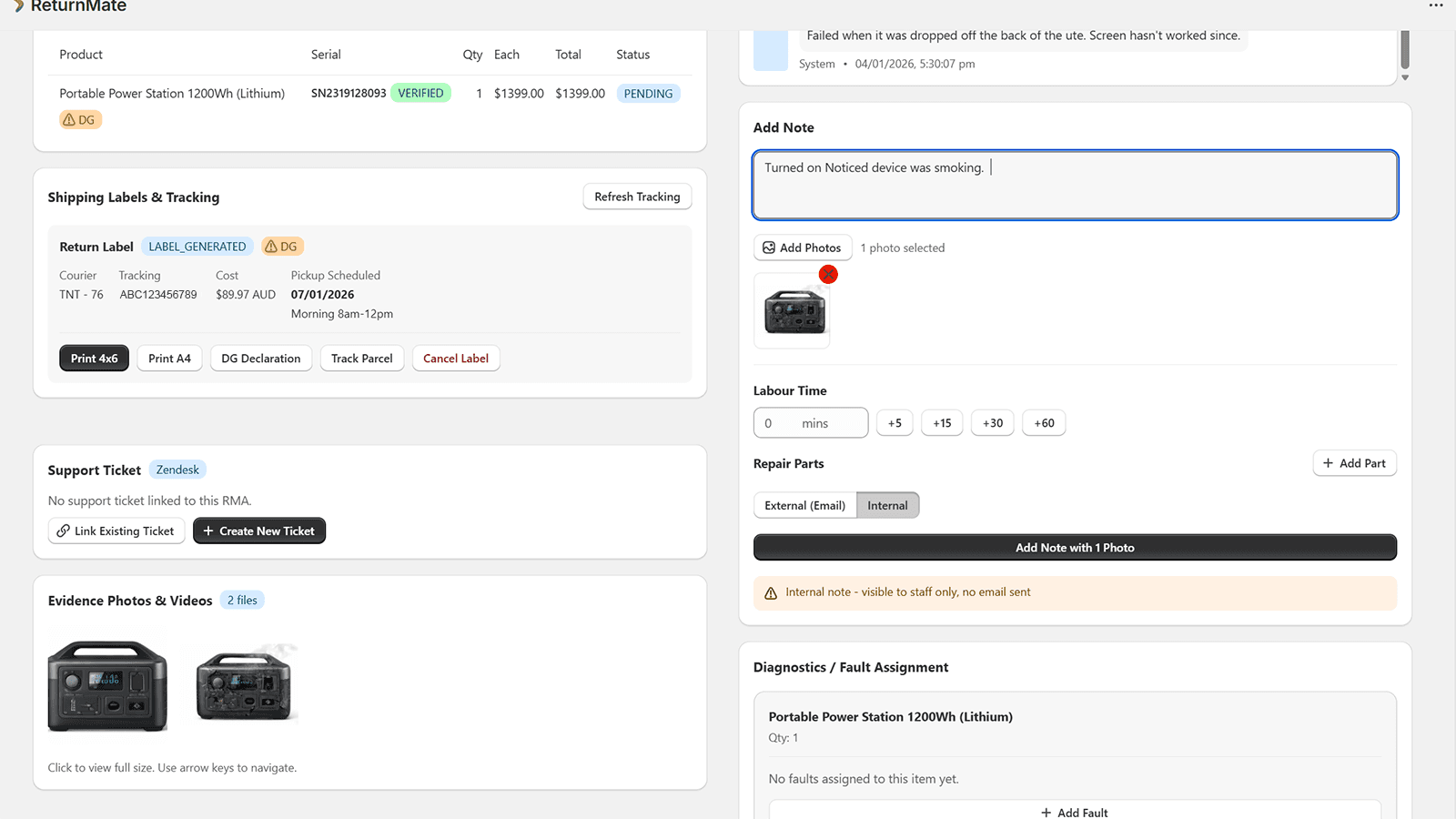
In the Case Timeline
- Open the warranty case
- Click Add Note or use the timeline input
- Select note type: Diagnostic, Internal, Customer-Visible
- Enter your findings
- Attach photos if applicable
- Save
Note Types
| Type | Visibility | Purpose |
|---|---|---|
| Diagnostic | Internal | Technical findings |
| Internal | Staff only | Team communication |
| Customer-Visible | Customer & Staff | Updates for customer |
| Resolution | Customer & Staff | Final outcome details |
Documentation Standards
What to Include
Physical Condition:
- Overall appearance
- Any damage observed
- Accessories received
- Packaging condition
Functional Assessment:
- Tests performed
- Results of each test
- Whether issue was reproduced
- Additional problems found
Technical Diagnosis:
- Root cause determination
- Component failures identified
- Repair requirements
- Parts needed
Recommendation:
- Repair viability
- Estimated repair cost/time
- Replace recommendation if applicable
- Warranty coverage determination
Photo Documentation
Take photos showing:
- Overall product condition
- Specific defect or damage
- Serial number/labels
- Any internal components inspected
- Before and after repair comparison
Use good lighting and take multiple angles. Clear photos are invaluable if disputes arise.
Diagnostic Templates
Creating Templates
Save time with diagnostic templates:
- Go to Settings → Templates → Diagnostics
- Click Create Template
- Enter template name and content
- Set product category (optional)
- Save
Template Example
Standard Electronics Diagnostic:
PHYSICAL INSPECTION
- Overall condition: [Excellent/Good/Fair/Poor]
- Damage observed: [None/Describe]
- Signs of liquid exposure: [Yes/No]
- Accessories received: [List items]

FUNCTIONAL TESTING
- Powers on: [Yes/No]
- Display functions: [Yes/No/N/A]
- Reported issue reproduced: [Yes/No]
- Additional issues found: [None/Describe]

ROOT CAUSE
- Failure type: [Component/Physical/Software/Unknown]
- Cause: [Manufacturing defect/Wear/Damage/Other]
- Component affected: [Specify]

RECOMMENDATION
- Covered under warranty: [Yes/No/Partial]
- Recommended action: [Repair/Replace/Deny]
- Estimated repair time: [X hours/days]
- Parts required: [List or None]
Structured Diagnostic Fields
Custom Fields
Configure structured diagnostic fields:
- Go to Settings → Warranty → Diagnostic Fields
- Add fields relevant to your products:
- Dropdown: Issue categories
- Checkbox: Standard tests performed
- Number: Measurement readings
- Text: Detailed descriptions
Benefits of Structured Data
- Consistent documentation across team
- Easier reporting and analysis
- Quick data entry
- Searchable records
Case Notes Best Practices
Writing Effective Notes
- Be specific: "Battery doesn't hold charge" not "Power issue"
- Be objective: Facts, not opinions
- Be complete: Include all relevant observations
- Be timely: Document immediately after assessment
- Be professional: Notes may be shared with customers
Internal Communication
Use internal notes for:
- Questions for colleagues
- Reminders for follow-up
- Escalation requests
- Cost considerations
Internal notes are never visible to customers. Use them freely for team communication.
Searching Case History
Finding Past Cases
Search diagnostic notes to:
- Find similar issues: "Search: battery swelling"
- Reference previous resolutions
- Identify product-wide problems
- Support warranty decisions
Case History Report
Generate reports showing:
- All cases for a product type
- Cases with specific diagnoses
- Resolution patterns
- Repair vs replace decisions
Integration with Repair Workflow
Diagnostic notes feed into:
- Repair quotes - Based on diagnosis
- Parts ordering - From identified needs
- Resolution decisions - Informed by findings
- Customer communication - Explains outcomes