Fault Recommendations & Factory Fixes
Log suggested solutions per SKU and fault, hold suppliers accountable, and verify implemented fixes with the 90-day regression watch.
Fault recommendations turn your diagnostics data into supplier action. When the same fault keeps appearing on a SKU, you log a suggested solution against that SKU + fault combination, push it to the supplier, and — once the supplier implements a fix — ReturnMate automatically compares fault rates before and after the fix so you can prove whether it actually worked.
This is built for ops managers who need an evidence trail when holding suppliers accountable: first-observed dates, affected item counts, photo evidence, batch numbers, and a regression watch that flags fixes that aren't holding.
Overview
A recommendation is logged per SKU + fault subcategory. Each combination can only have one recommendation — if you try to create a duplicate, you'll see the error "A recommendation already exists for this SKU + fault combination". This keeps one authoritative record per problem rather than a scatter of duplicates.
Each recommendation tracks:
- Status — Open → With supplier → Implemented or Declined
- Priority — Low, Medium or High
- First observed — pre-filled automatically from the earliest matching fault on record
- Affected items — pre-filled count of distinct RMA items that recorded this fault
- Photos — reference images (defective part, fix diagram, supplier documentation)
- Implementation details — date, batch number and notes, captured when you log the fix
Before You Begin
- Fault classification must be configured under Settings > Faults / Diagnostics, and your technicians should be recording faults on RMA items — the pre-filled counts and the regression watch are both driven by that fault data. See Faults & Diagnostics Configuration.
- Recommendations live inside Product Analytics, which requires the Scale plan. See Plans, Billing & Usage Limits.
Where to Find Recommendations
Recommendations surface in Analytics > Products > Failure Analysis:
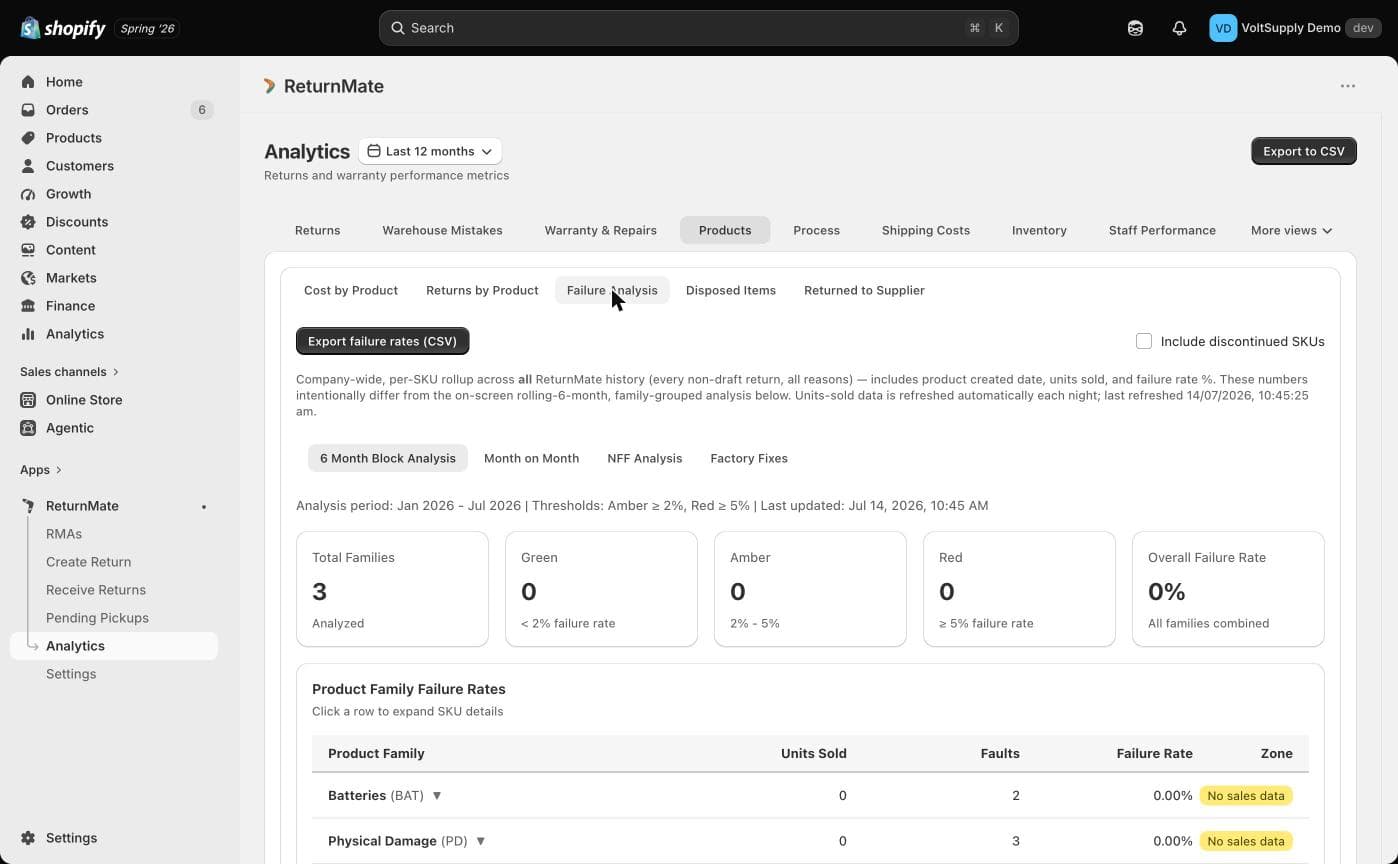
- Go to Analytics and open the Products tab.
- Select the Failure Analysis tab.
- In the 6 Month Block Analysis or Month on Month tab, expand any SKU row — the Suggested Solutions panel appears beneath the fault breakdown.
- The Factory Fixes tab gives you the shop-wide view, split into Suggested (Open and With supplier) and Implemented sub-tabs.
Logging a Recommendation
Expand the problem SKU
In Analytics > Products > Failure Analysis, expand the SKU's row in the Block Analysis or Month-on-Month tab to see its fault breakdown and the Suggested Solutions panel.
Click + Add solution
The Add suggested solution modal opens for that SKU. Fill in:
| Field | Notes |
|---|---|
| Fault category (optional) | Scope the fix to a failure category |
| Fault subcategory (optional) | Pinpoint the specific fault this fix addresses |
| Title (required) | Short label, e.g. "Reinforce handle bracket" |
| Notes | Detail of the proposed fix, supplier requirements, etc. |
| Priority | Low, Medium (default) or High |
| Photos (optional) | Up to 6 images, 10 MB each — defective part, fix diagram, supplier doc |
Save
On save, ReturnMate scans your historical fault data for that SKU + subcategory and pre-fills the first observed date and the affected item count — so the record opens with evidence already attached.
Selecting a fault subcategory is optional but recommended. It scopes the recommendation (and the later regression watch) to that specific fault. Without one, the recommendation is SKU-wide and the regression watch counts all faults on the SKU.
Status Workflow
| Status | Meaning |
|---|---|
| Open | Logged internally, not yet raised with the supplier |
| With supplier | Sent to the supplier — click Mark with supplier when you escalate it |
| Implemented | The supplier (or factory) has shipped the fix — logged via Log a fix |
| Declined | Decided not to pursue — click Decline |
From the Suggested Solutions panel you can also Reopen an Implemented or Declined recommendation, add photos at any time, or Delete it entirely.
Reopening an Implemented recommendation clears its implementation date, batch number and implementation notes — it will no longer appear as a Factory Fix, and the regression watch stops. Only reopen if the fix genuinely needs to be re-worked.
Logging a Fix
When the supplier implements a fix, click Log a fix on the recommendation (available while it's Open or With supplier). The Log fix modal records:
- Implementation date — defaults to today; backdate it if the fix landed in production earlier. The regression watch is anchored to this date.
- Batch number — the production batch the fix was first applied to (e.g. "B2026-04 / Lot 1234"). Items shipped from this batch onwards are considered fixed.
- Implementation notes — what was done, supplier reference, before/after measurements.
The Factory Fixes Regression Watch
Every Implemented recommendation appears in the Factory Fixes > Implemented sub-tab with an automatic pre/post comparison:
- Pre-fix window: faults on that SKU (and subcategory, if set) in the 90 days before the implementation date
- Post-fix window: faults from the implementation date onwards, capped at 90 days
- Counts are normalised to a per-day rate, so windows of unequal length compare fairly (e.g. a fix implemented 3 weeks ago)
Each fix is badged:
| Badge | Meaning |
|---|---|
| Holding | No faults recorded since the fix |
| Improved | Faults still occur, but at less than 50% of the pre-fix rate |
| Regressed | Post-fix fault rate is 50% or more of the pre-fix rate — the fix may not be holding |
| No baseline | No pre-fix faults recorded, so a regression percentage can't be computed |
Use a Regressed flag as your trigger to go back to the supplier: the record already contains the fault counts, dates, batch number and photos you need for that conversation.
Permissions & Plan Requirements
- The Analytics > Products tab (including Failure Analysis and Factory Fixes) requires the Scale plan — see Plans, Billing & Usage Limits.
- Any staff member with access to Analytics can view and manage recommendations.
Limitations
- One recommendation per SKU + fault subcategory combination. To track a second fix for the same fault, update the existing record rather than creating a new one.
- Photo uploads are images only (JPEG, PNG, GIF, WebP), up to 6 files per upload and 10 MB per file. Images are compressed automatically for storage.
- The regression comparison uses fixed 90-day windows — it does not adjust for seasonality or sales volume changes between the two windows.
- Items without a SKU can't have solutions attached — the panel will show "This item has no SKU, so solutions can't be attached to it."
Troubleshooting
"A recommendation already exists for this SKU + fault combination" — a recommendation for this exact SKU + subcategory already exists (it may be Declined or Implemented). Find it in the Factory Fixes tab or the SKU's Suggested Solutions panel and update or reopen it instead.
A fix shows "No baseline" — there were no recorded faults in the 90 days before the implementation date. This usually means the fault pre-dates your fault-tracking history or the recommendation was scoped to a different subcategory than the one technicians actually record.
The Factory Fixes tab is empty — only recommendations marked Implemented (via Log a fix) appear under Implemented; Open and With-supplier items are under the Suggested sub-tab. If neither has entries, no solutions have been logged yet — add one from any SKU's expanded row.