ShipStation
Book return and outbound labels on the carriers connected in your ShipStation account — including Australia Post MyPost Business, which has no API of its own.
ShipStation is a shipping platform rather than a carrier. Connect it to ReturnMate and every label is booked through ShipStation's API on whichever carriers you have connected inside your ShipStation account: Australia Post MyPost Business, Sendle and Aramex in Australia, and USPS, UPS, FedEx, Royal Mail and others elsewhere. The carrier bills you exactly as it does for your outbound orders, ShipStation prints the label, and your customer sees the carrier that ships the parcel.
Australia Post only issues API keys for eParcel and the Shipping & Tracking API. MyPost Business accounts have no API keys, so the direct Australia Post integration cannot use them. Connect MyPost Business inside ShipStation and add ShipStation as your carrier in ReturnMate instead.
What it does
| Capability | Notes |
|---|---|
| Return labels | The carrier's return product where the service offers one (charged on scan by some carriers), otherwise a standard label from the customer to your return location, charged when created |
| Outbound labels | Replacements and repair ship-backs, from your location to the customer |
| Live rates | Quotes in the customer portal and on the approval screen come from ShipStation's rates for your connected carriers |
| Cheapest service | Leave the service codes blank and ReturnMate books the cheapest valid rate across every connected carrier |
| Tracking | ShipStation's tracking updates drive the RMA's shipment status |
| Voids | Cancelling a label voids it in ShipStation; the carrier refunds under its own rules |
| Pickups | Where the connected carrier supports pickup booking through ShipStation |
Not supported: dangerous goods (use a direct DG carrier), international labels, and multi-parcel labels on services that take one parcel per label.
Step 1 — Connect your carrier in ShipStation
In ShipStation go to Settings → Shipping → Carriers → Add carrier and connect the carrier you want returns on. For MyPost Business, ShipStation asks for the merchant token from your MyPost Business account; generate it with ShipStation selected as the partner. If you already ship through ShipStation, this is done.
Step 2 — Generate an API key
In ShipStation go to Settings → Account → API Settings, choose V2 API in the version selector (it opens on V1), and click Generate API Key. The Production Key then appears with a copy button.
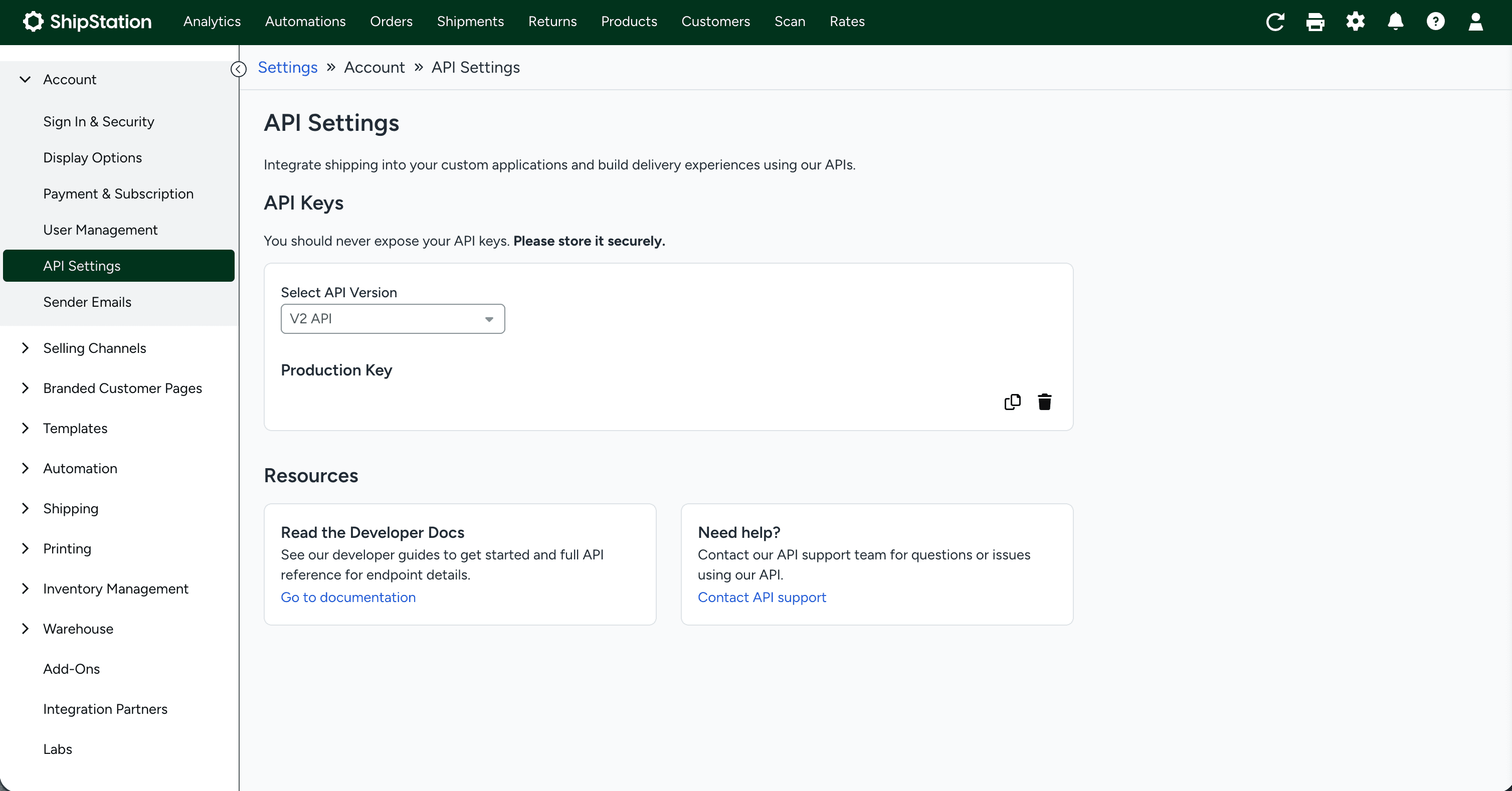
The key is shown once — copy it straight away. ShipStation API customers (formerly ShipEngine) use the key from their ShipStation API portal instead.
Step 3 — Add ShipStation in ReturnMate
- Go to Settings → Carriers
- Click Add Carrier and select ShipStation (connected carriers)
- Paste the API key — it is the only credential ShipStation needs
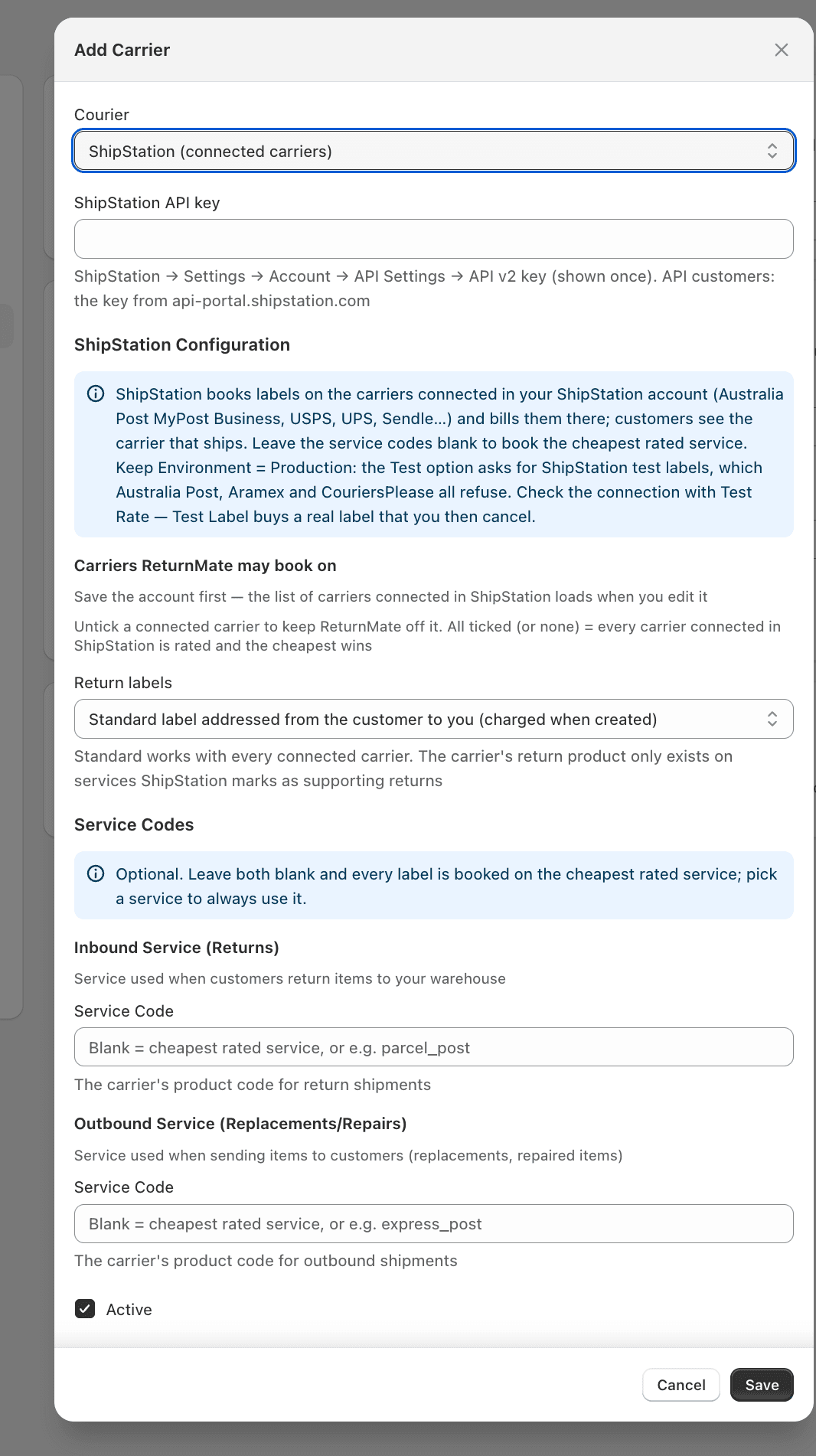
The fields, in the order they appear:
| Field | What to enter |
|---|---|
| ShipStation API key | The V2 API key from Step 2. It identifies the account, so there is no account number, secret or environment to enter — ShipStation accounts always run in Production because the carriers refuse ShipStation's test labels |
| Carriers ReturnMate may book on | Shown once the account is saved and reopened: a checklist of every carrier connected in ShipStation. Untick any you do not want returns on. All ticked = every connected carrier is rated and the cheapest wins |
| Return labels | Carrier's return product where the service has one (the default): ShipStation's return label, which some carriers charge only when the parcel is scanned. A service without one — MyPost Business among them — gets a standard label addressed from the customer to you, charged when created. Standard labels only switches the return product off entirely |
| Service codes | Leave on Cheapest rated service, or pick a service from the dropdown of your enabled carriers' services (e.g. Australia Post MyPost Business – Parcel Post) to always use it |
- Click Test Rate — it returns a live price from your connected carrier, which confirms the key and the carrier connection in one go
- Tick Active, set it as the default if ShipStation is your main carrier, and Save
- Reopen the account: the Carriers ReturnMate may book on checklist now shows everything connected in ShipStation, every carrier enabled. Untick any you do not want used for returns, pick services if you want to pin them, and save again
During setup
The setup wizard's carrier step offers the same thing with the same single field. Choose ShipStation (connected carriers), paste the key and click Add Carrier; choose carriers and services later under Settings → Carriers.
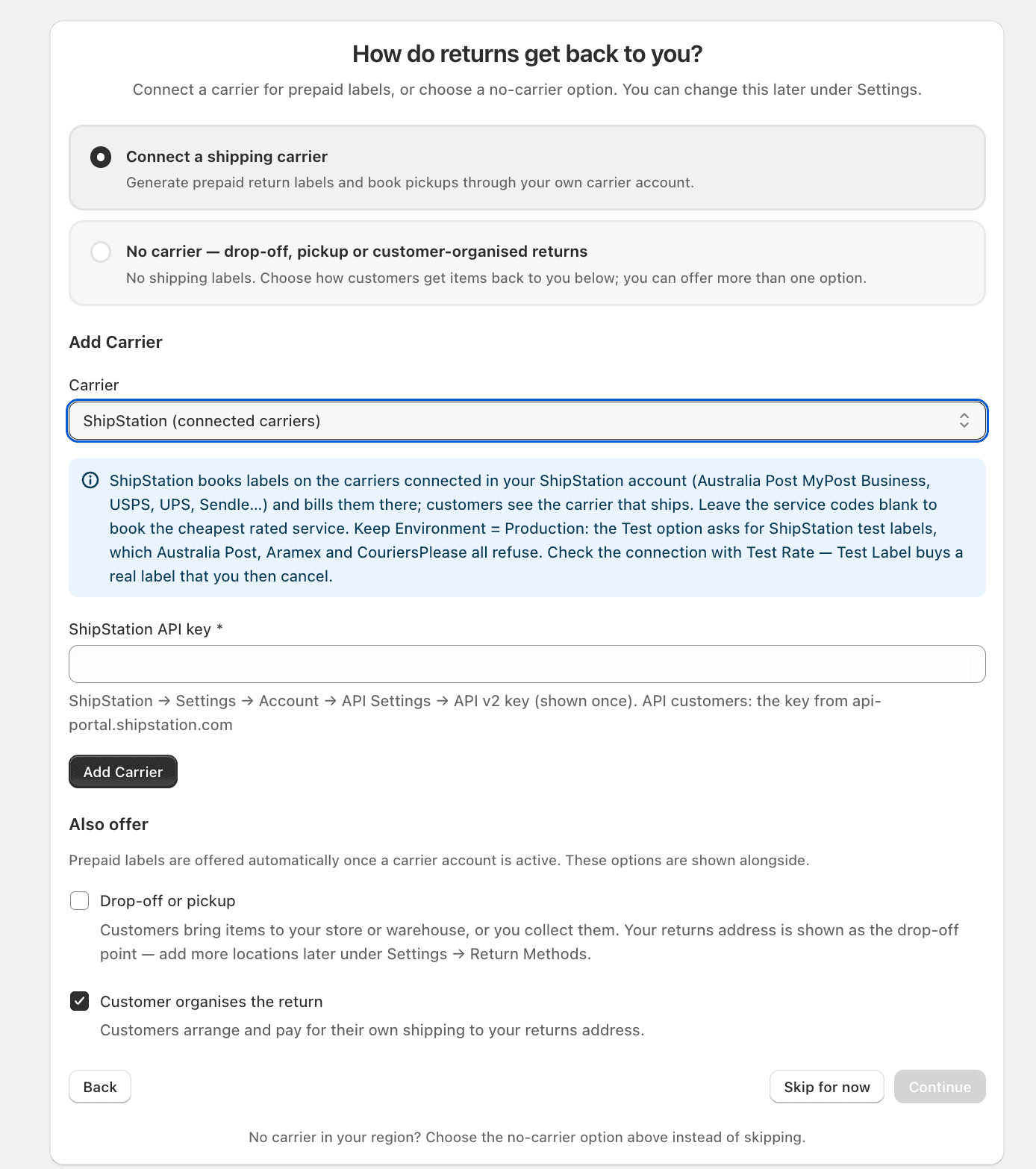
ShipStation has no sandbox for platform accounts, and the carriers refuse ShipStation's test-label flag, so ShipStation accounts have no Test environment in ReturnMate. Use Test Rate to check the connection. Test Label on a ShipStation account buys a real label on your carrier account — cancel it afterwards so the carrier refunds it (MyPost Business refunds unused labels).
Service codes
Once the account is saved, the service fields become dropdowns of the services your enabled carriers offer. ShipStation's service codes are per carrier; the MyPost Business codes are:
| Code | Service |
|---|---|
aupost_parcel_post | Parcel Post |
aupost_express_post | Express Post |
Other carriers' codes appear in ShipStation under that carrier's services. If two enabled carriers share a code, either untick one of them on the account or write the code as se-123456/parcel_post.
What customers and staff see
- The customer portal and emails name the carrier that ships the parcel (for example "Australia Post MyPost Business"), not ShipStation.
- Staff see the shipment as "Australia Post MyPost Business via ShipStation" on the RMA.
- Shopify fulfilments created from outbound labels carry the shipping carrier's name and tracking number.
Troubleshooting
| Message | Cause and fix |
|---|---|
| ShipStation rejected the API key | The key was mistyped, revoked, or is a V1 key. Generate a V2 key |
| No carrier is connected in this ShipStation account yet | Finish Step 1 in ShipStation |
| Test labels are not supported by this integration | The carrier refuses ShipStation test labels. Set the account's Environment to Production |
| Service "…" is offered by several enabled carriers | Untick one of them on the account, or use the se-…/code form |
| None of the carriers enabled for ReturnMate is usable | Every ticked carrier is disconnected or disabled by your ShipStation plan — tick another one |
| … takes one parcel per label | That service is single-parcel in ShipStation; create one label per parcel |
| ShipStation returned no usable rate | The connected carrier could not rate the parcel — usually an address or weight problem reported in the message |